Leandro Mocchegiani · Wallet
Your card, even without Internet.
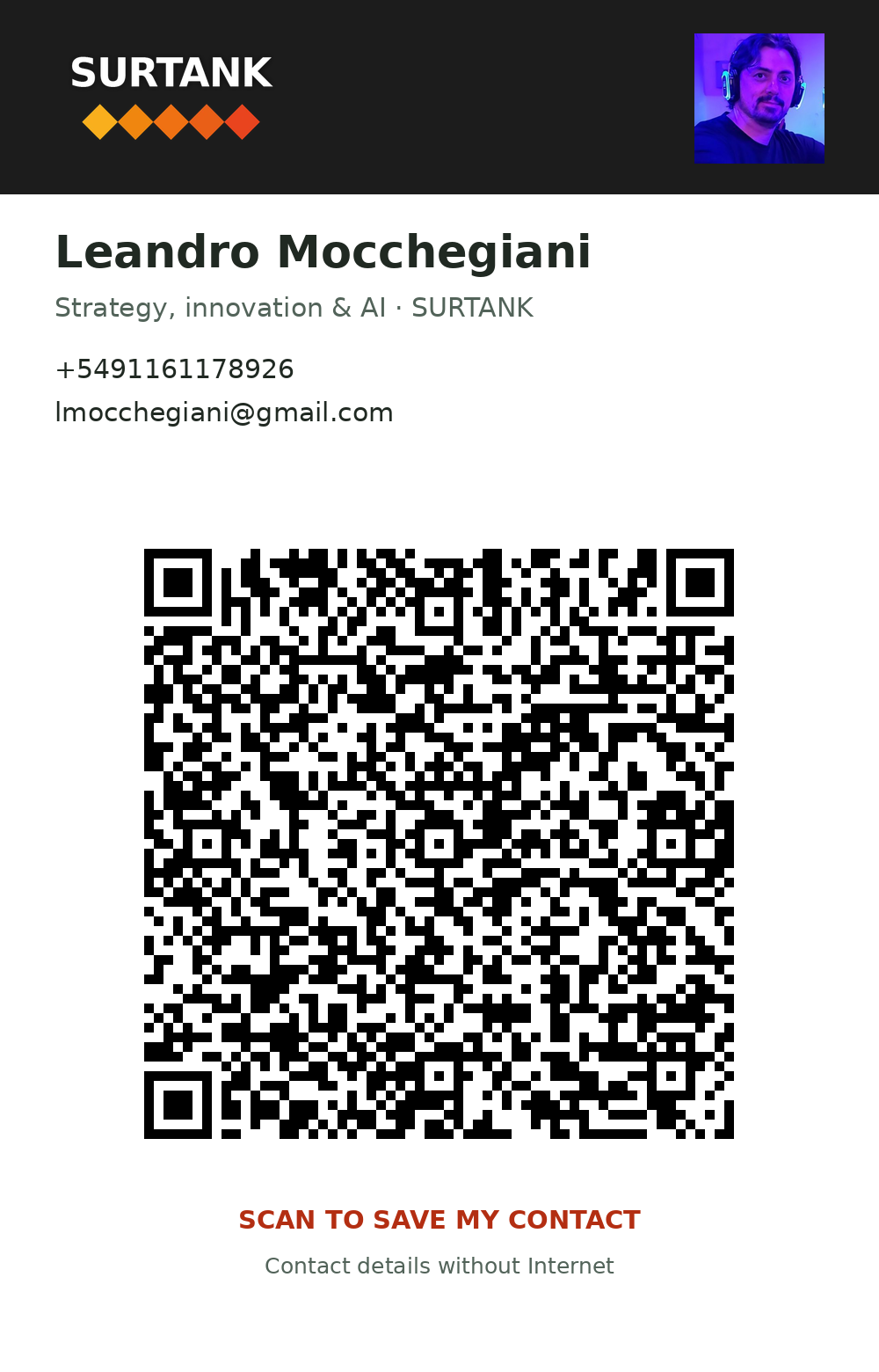
Save it once. Then open Wallet and show the QR to share your details.
ONE-TIME SETUP · WITH INTERNET
Add to your Wallet
Choose your phone to see the steps.
Android · Google Wallet
- Save this card image or take a screenshot.
- Open Google Wallet → Add to Wallet → Photo (or “Everything else”, depending on the version).
- Select the image, review the QR and details, then tap Add.
If the image does not appear in Photos, open it and take a screenshot. This option depends on Wallet availability and version.
iPhone · Apple Wallet
- On an iPhone with iOS 27 and available Apple Intelligence, take a screenshot of the card shown here.
- In the screenshot, tap Add to Wallet and review the pass before saving it.
If that option is missing, check Wallet → + for “Create a Pass”. Image import depends on the model, language and region. Devices without these options need a signed Apple pass.
After adding it, enable airplane mode and scan the QR from another phone. It should offer to save a contact; if it opens a website, the pass did not retain the correct QR.
To share without Internet
Open your card in Wallet and show the QR. The other phone can save your name, phone, email and link if its camera recognizes contact QR codes. The microsite and resources open when Internet is available.
The photo is included when saving the contact from the microsite or sending the file. The QR carries basic details.
Share with a nearby phone
Save your contact to Contacts once. Then use Contacts → Share: AirDrop between iPhones or Quick Share between Android phones. Android–iPhone transfers depend on compatible models. The recipient does not need our app.
Save contactEnable Bluetooth and Wi-Fi for nearby sharing, even without Internet access. If the other phone does not appear, use the Wallet QR.
NameDrop on compatible iPhones and Tap to share on certain Android phones can share selected details through the operating system. This pass does not activate them: Wallet cannot send this contact via NFC between any pair of phones.
If you need to create the pass manually
These are the exact contact-code contents. Use them only if the pass creator supports QR codes containing text.